
Video Generation Basics
Video on Soulkyn starts from a picture. You pick any image in any gallery, hit Generate Video, and the AI adds motion and sound to it. There is no text-to-video path — the frame you begin with is one you already have.
Videos are 5 or 10 seconds, and a premium subscription is required. SFW or NSFW, both work.
Two modes, two quality levels
Decide these two before you write anything.
Mode
- Video + Sound — with audio and voice. The full result, and the best quality on offer.
- Fast, silent — cheaper, no sound. Right when you want motion and nothing else.
Quality
- Fast — fewer inference steps, 480p.
- Detailed — more steps, 720p. Slower.
Duration is 5 or 10 seconds. The 10-second option is the Extended Duration toggle, available in Fast mode.
Beyond that you can pick up to four animation types (the enhancers below) and write a prompt describing what should happen.
UI Explanation
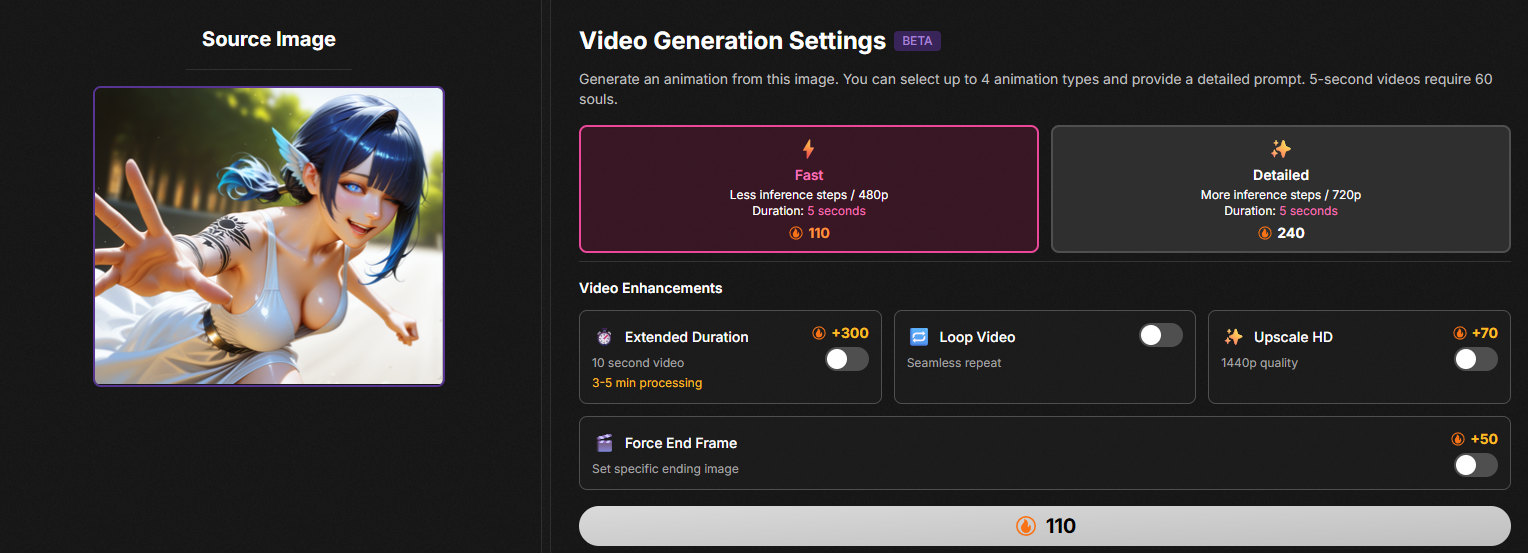
| UI Element | Explanation |
|---|---|
| Fast / Detailed | Choose rendering mode: Fast is less precise, Detailed is slower but higher quality |
| Extended duration | Extends video duration to 10 seconds |
| Loop Video | Attempts to make video loop seamlessly like a GIF |
| Upscale HD | Upscales your video to 1440p resolution |
| Force end frame | Forces video generation to show the last frame as another image |
| Soul icon button | Starts video rendering |
Animation Enhancers
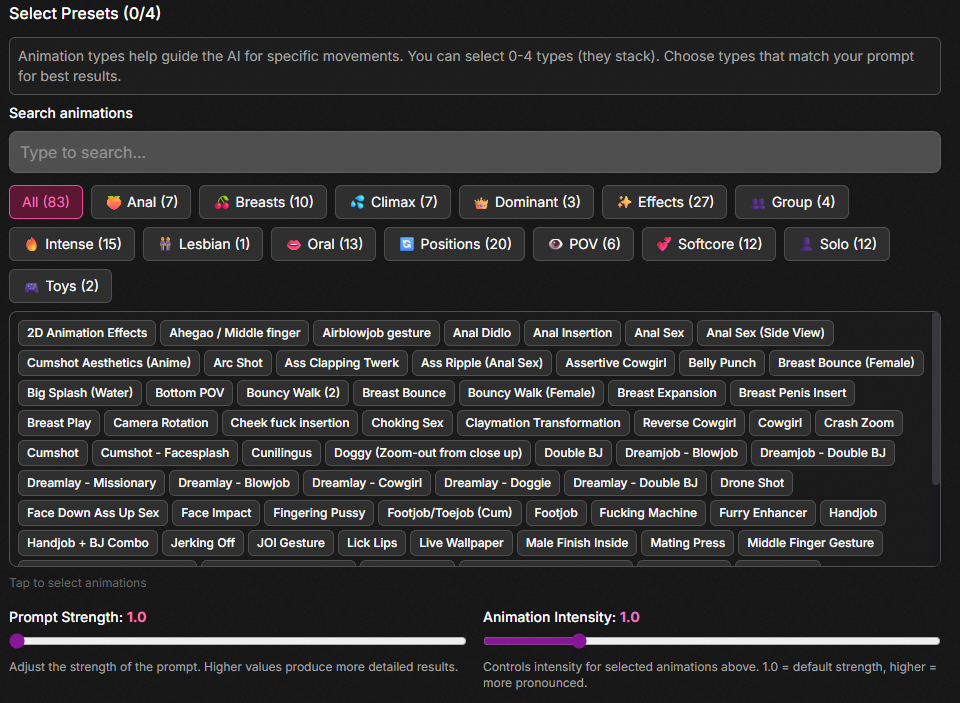
Choose different enhancers (LoRAs) for the animations in your videos.
For an explanation of LoRAs, refer to the Advanced Guide for Image Generation.
Prompt strength: Forces AI to follow your prompt more precisely but gives it less creative freedom.
Animation intensity: Controls how pronounced the animation is. Higher values may break the video.
Prompt Interface
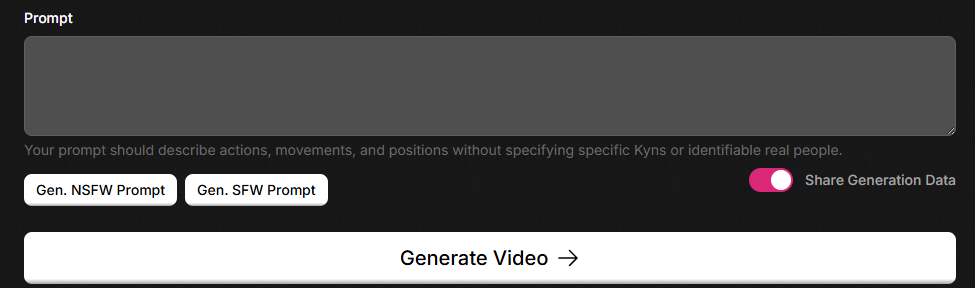
| UI Element | Explanation |
|---|---|
| Prompt | Carefully describe with full sentences what you want your video to be |
| Gen. NSFW Prompt | AI generates an example NSFW prompt for you |
| Gen. SFW Prompt | AI generates an example SFW prompt for you |
| Share Generation Data | Saves the prompt used for the video - will display under it |
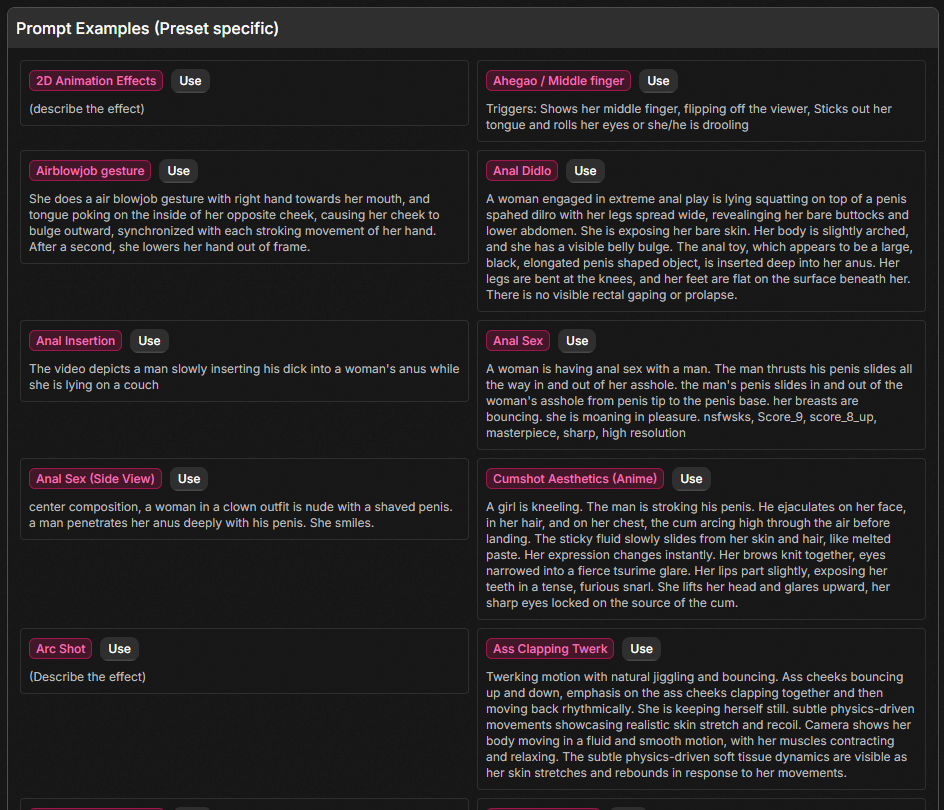
Prompt examples for various LoRAs are shown. After pressing "use", they will be copied to the Prompt window.
How to Write Video Prompts
You have five or ten seconds
That is one continuous action, not a scene list. "She walks in, sits down, then looks up" is three shots asked for in a window that fits one; the model will pick something and it will not be what you pictured. Describe a single motion and let it play.
Write it in order
Events in the exact sequence they happen, start to finish. The prompt is read as a timeline.
Match the animation types to the prompt
The enhancers you select and the words you write have to agree. Picking an animation type the prompt never describes wastes a slot; describing an action with no matching enhancer usually gets you a softer version of it. Several enhancers work best when several things happen at once.
Example
She turns her head slowly toward the camera, hair moving with the turn, and breaks into a smile. Her shoulders rise as she takes a breath. The light shifts across her face as she moves. Slow, continuous motion, no cuts.
One action, in order, described as motion rather than as a series of stills. That is the whole shape of a good video prompt.
Adult prompts
They are supported, and the generator will write one for you — there are Gen. NSFW Prompt and Gen. SFW Prompt buttons that produce a worked example you can edit. If you are unsure how explicit a prompt needs to be to get a result, generating one and reading it is faster than guessing.
Two more things that help
- Be specific about body type, speed and camera angle. Vague prompts get generic motion.
- Look at popular videos on the hub for prompt shapes that clearly worked.
After you hit generate
Rendering is asynchronous. You do not have to sit on the page: the job runs, and a notification tells you when it is ready.
If a render fails, the souls are refunded automatically. There is nothing to claim and nobody to write to.
Finished videos land in the gallery they were made from. If you make yours public they also appear in the video hub at /ai-shorts, alongside everyone else's — which is the best place to go looking for prompts that clearly worked before writing your own.