
Advanced Image Generation
This guide assumes you have read the basics and will not repeat them.
The single most important thing to know before reading further: Soulkyn runs two families of image model, and almost everything below applies to one of them. The SD models (SD - Anime Original, SD - Anime Alpha, SD - Anime Hyper) are Stable Diffusion-based — they take tag prompts and expose weights, schedulers, CFG and CLIP skip. The natural-language models (SK-Alpha, ZIT - Sk-All, ZIT - Sk-Photo, ZIT - Sk-Real) take plain sentences and have a Force Style toggle instead of most of those controls.
So the page opens with the natural-language family, then covers the SD control panel, weights, stylization, presets and prompt anatomy in depth, and closes with AI Image Edit.
The natural-language models: SK-Alpha and ZIT
Four of the seven models — SK-Alpha, ZIT - Sk-All, ZIT - Sk-Photo and ZIT - Sk-Real — do not want tags at all. Write a sentence, the way you would describe the picture to somebody who is about to paint it.
What changes
- No weight syntax.
+,-and:2are not a language here. Emphasis comes from what you choose to say and how you order the sentence, exactly like ordinary writing. - No CFG, no CLIP skip, no scheduler. That whole panel belongs to the SD family. Nothing is missing — those knobs simply have no counterpart.
- Force Style instead. A Realistic / Anime sub-toggle that pins the render style regardless of what the prompt says. This is the control you reach for when a model keeps drifting toward the wrong look — it is far more reliable than arguing with it in prose.
- More room. 1,400 characters of prompt instead of 550, and up to four LoRAs instead of three.
- Face reference is available on both natural-language families, which is the practical way to keep one character recognisable across a set.
Choosing between them
SK-Alpha is the realistic-class specialist and only appears on realistic-family kyns — it is hidden on anime-only ones. It has no img2img. ZIT - Sk-All is the broad generalist, ZIT - Sk-Photo leans photographic, ZIT - Sk-Real leans realism, and all three accept img2img: paste a Soulkyn image link as the base and the model works from it.
How to prompt them well
- Describe the frame, not a list of nouns. Where the subject is, what they are doing, where the camera is, what the light is doing.
- One clear sentence beats five contradictory clauses. If the result is confused, the prompt usually is too.
- Change one thing per attempt. Rewriting the whole sentence tells you nothing about what moved the result.
- Set the style with Force Style, not with adjectives fighting the model's default.
Everything from here to the end of “Common Issues” is about the SD family. Weights, schedulers, CLIP skip and CFG do not exist on SK-Alpha or the ZIT models — on those, describe what you want in a sentence and use Force Style. One correction while you are here: the CFG bands described below are the general theory, but Soulkyn's Prompt Strength slider runs 5.5 to 11, defaulting to 7.5. Read the bands as relative, not as the range you will see.
Advanced Settings

Layers
Layers are "blocks" that make up an image model. Think of Stable Diffusion as a tower made of floors - each "block" has its own job:
- Early layers - Capture low-level details (edges, colors, textures)
- Middle layers - Capture patterns and shapes (faces, clothing, body structure)
- Late layers - Capture semantic meaning (concepts like "cat" vs "dog" or "anime style" vs "photo")
LoRA
LoRAs are training methods for fine-tuning large models. When you have an image model, LoRAs teach it new tricks by injecting themselves into certain layers - like remodeling specific floors in the tower.
CLIP Skip Layers
Stable Diffusion uses CLIP (Contrastive Language-Image Pre-training) as a text encoder to convert your prompt into embeddings. CLIP is basically a translator between you and the image model. Skipping layers cuts off higher-level understanding.
Many anime models and LoRAs are trained with CLIP skip values in mind (most often 2). Skipping a layer might give you more anime-like or stylized results.
Scheduler
The scheduler controls the denoising process during generation. It strongly affects image sharpness, coherence, and prompt adherence.
Euler a - Fast
- Produces sharp, detailed images with strong contrast
- Great for anime, stylized art, or sketch-like detail
- Sometimes unstable with realism - might distort fine textures or faces
- When to use: Fast, creative, detailed outputs for anime-style or concept art
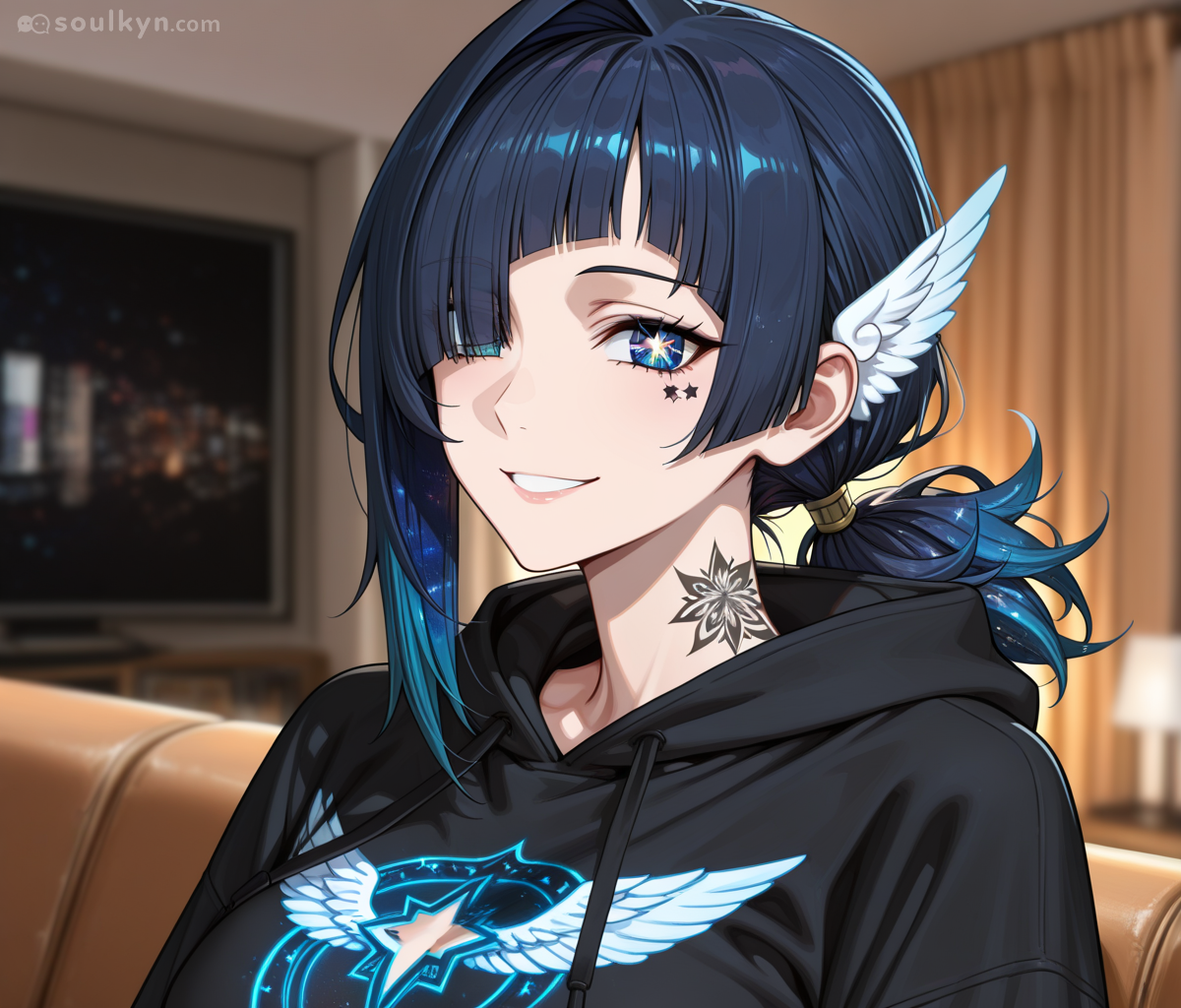
DPM++ SDE Karras
- Produces smooth, high-quality gradients and soft transitions
- Great for smaller details
- Each render comes out differently - good for organic variation
- When to use: Photorealistic renders, natural lighting, painterly styles, soft transitions
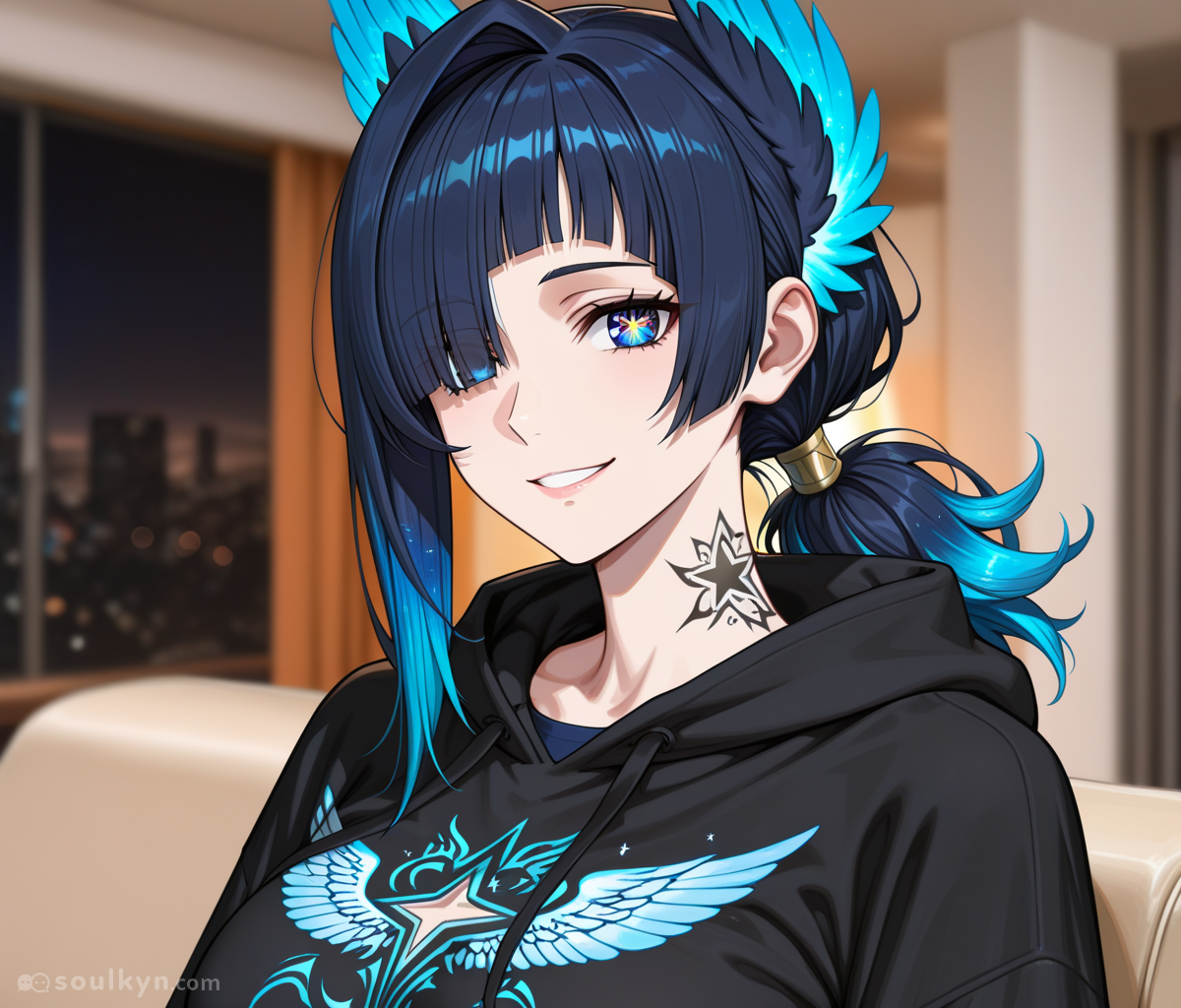
DPM++ 2M - Deterministic
- Produces smooth, consistent results with high prompt fidelity
- Good balance between speed and accuracy
- When to use: Realism, portraits, consistent styles where stability matters
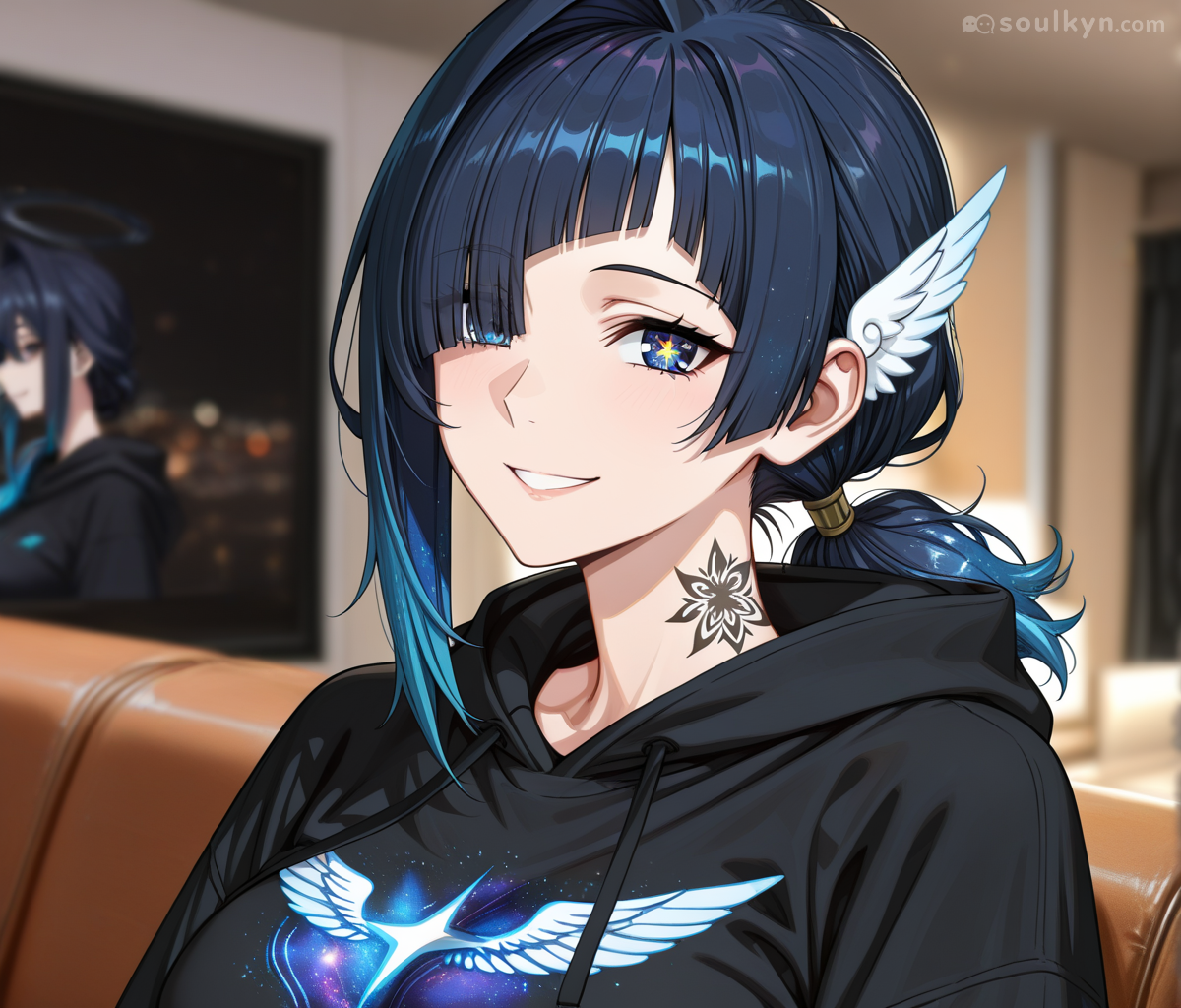
DPM++ 2M Karras
- Produces smoother gradients, better texture, and higher detail fidelity than vanilla DPM++ 2M
- Slightly slower than Euler A, but higher quality for realism
- When to use: Photorealistic images, portraits, complex textures - best for polished, stable look
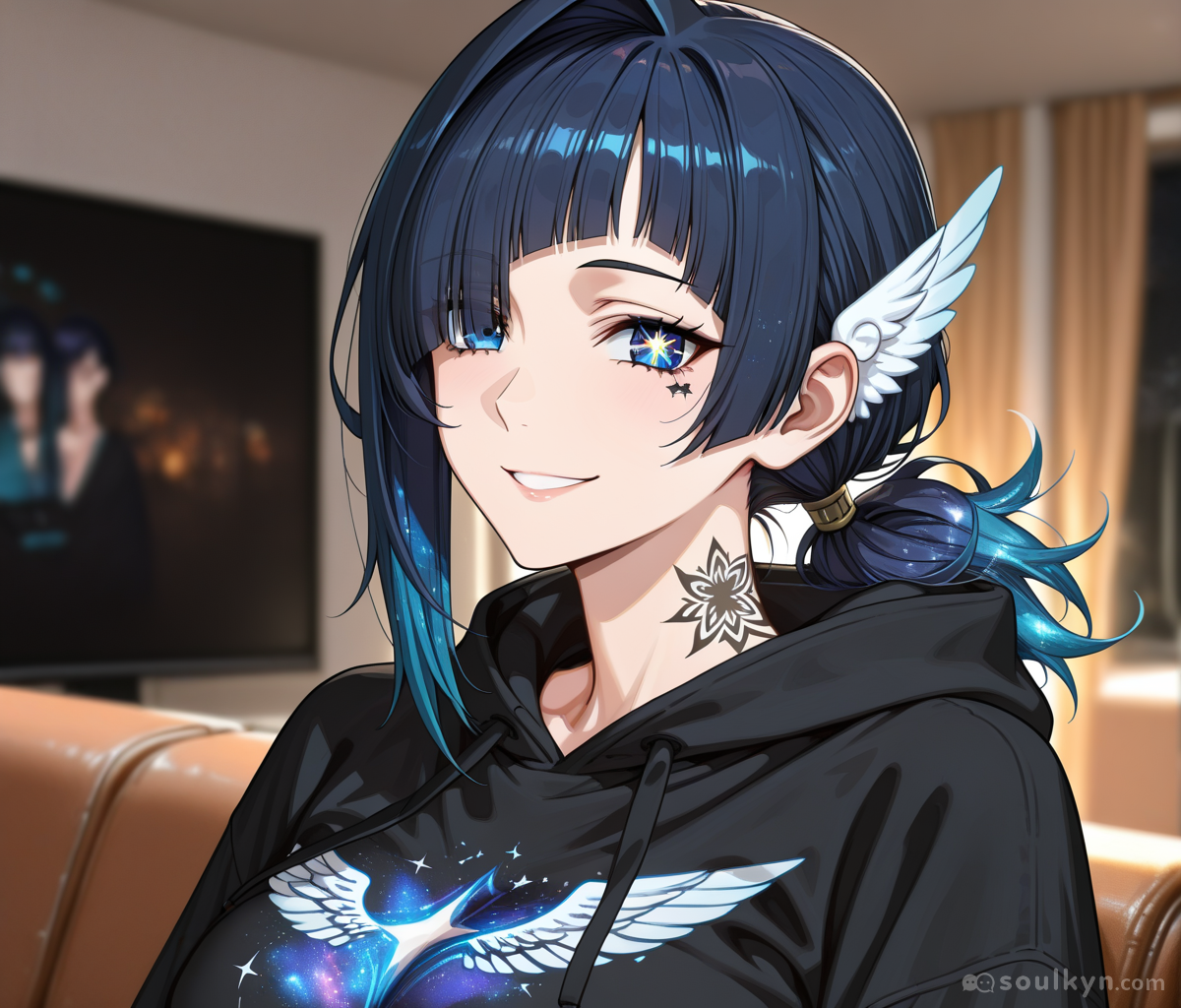
Prompt Strength
Prompt strength changes the CFG scale - the higher the value, the more the system follows your image prompt.
- Low CFG (1-5): Model pays less attention to prompt. More artistic freedom, dreamier compositions. Risk: Image drifts from what you asked.
- Medium CFG (6-9): Balanced adherence vs creativity. Common sweet spot: 7-8. Keeps both accuracy and aesthetics.
- High CFG (10+): Strong adherence to keywords. Can become oversaturated, harsh, or "burnt". Risk: Weird artifacts, stiff or unnatural images.
Weights
The actual weight of + is 1.1^x (where x = number of +). Meanwhile - is 0.9^x.
| # of signs | Weight of - | Weight of + |
|---|---|---|
| 1 | 0.9 | 1.1 |
| 2 | 0.81 | 1.21 |
| 3 | 0.729 | 1.331 |
| 4 | 0.6561 | 1.4641 |
| 5 | 0.59049 | 1.61051 |
| 6 | 0.531441 | 1.771561 |
DISCLAIMER: THIS TABLE ISN'T A MATH TABLE! IT'S A VISUAL REPRESENTATION OF THE FINAL RESULT!
You can game the system: (keyword-)2 gives equivalent of (keyword)1.8. More complex: (keyword---)2 calculates as (keyword 0.9^3)2 = 0.729 * 2 = (keyword)1.458
Stylization
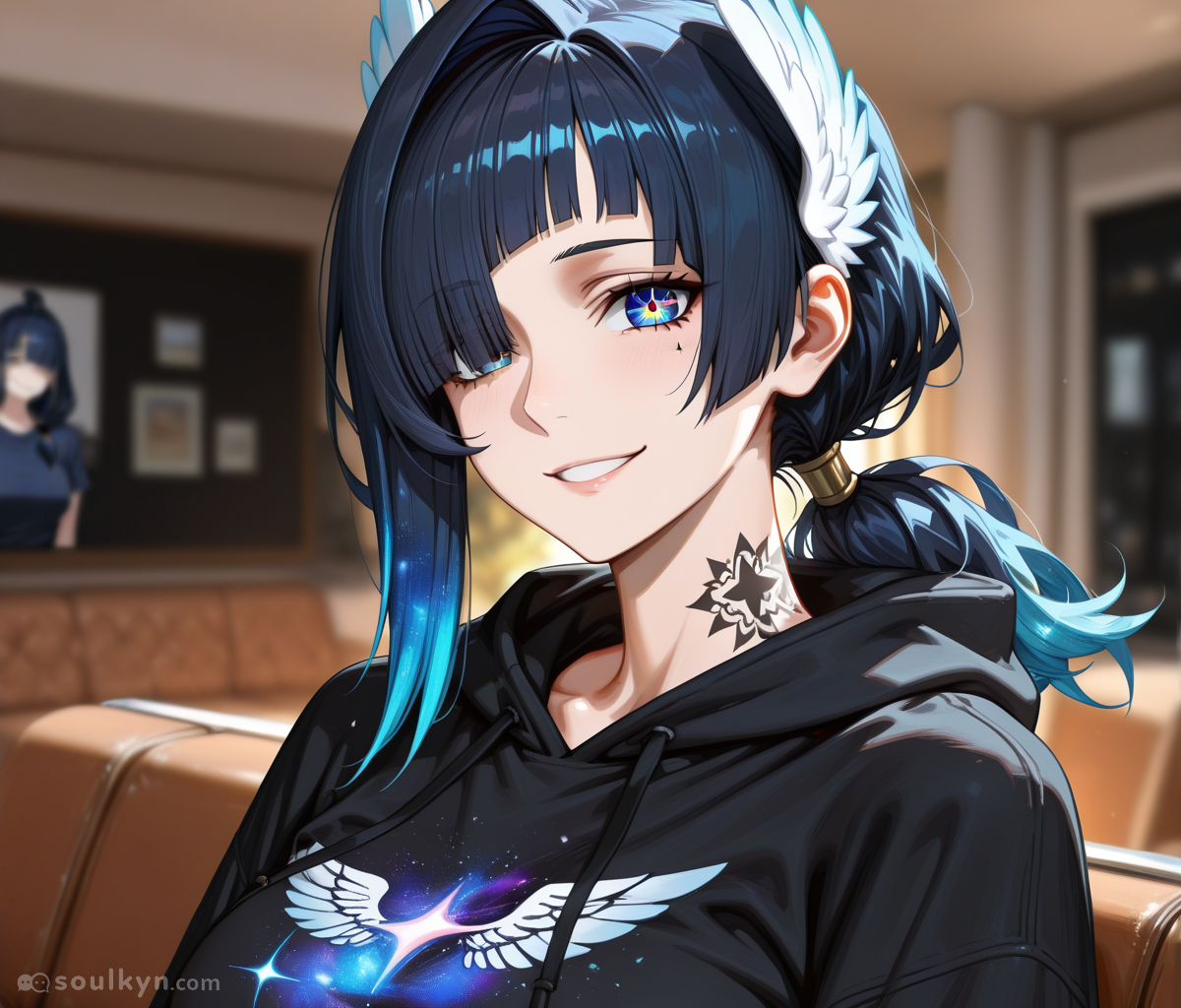
Combinations of keywords and weights can achieve certain desired looks. Example with painterly_shading:
| With Painterly_shading+++ | Without |
|---|---|
 | |
You can change:
- Style / Stylization - Overall look
- Shading / Lighting - Volume and depth
- Line-art - Definition of edges
- Proportions - How subjects are depicted
- Texture / Detail - Surface details
- Composition / Framing - Arrangement
- Simulation - What medium the picture simulates
- Quality - Overall quality
Presets & Physicals
On the SD models the image prompt is capped at 550 characters — which is not much once you are writing quality tags, a pose, a camera angle and a mood. Presets are how you get around it: background, clothing and prompt presets carry their own tags and do not spend your 550.
The real limits
- Clothing presets: up to 18 tags, 38 characters per tag.
- Background and prompt presets: up to 35 tags, 50 characters per tag.
- The image prompt itself: 550 characters on SD models, 1,400 on the natural-language models — where none of this preset packing is needed in the first place.
Packing tricks
- Use semicolons
;to pack several related meanings into one tag. - Use underscores
_to bind words into a single concept the model reads as one thing. - Use
:2for stronger weight — it is normalised, so it will not blow the image out.
Worked example: a PaintFuka-style character
Physical tags: Painterly; Soft; No_lineart, 8K;16K; Hdr, Blue Lips, Slim Eyebrows; Fair_skin:2, Long Two-Toned Dark_blue Hair, Realistic_character_anatomy, High Quality, Highest_quality; Extremely_detailed, Adult_woman:2; Mature_woman:2, Realistic Details, Painterly Texture, Cute;Kawaii, Digital_painting:2, Thick Thighs; Slim Waist, High Contrast, Painterly Details, Long Blue Hair; Blue Eyes, Dramatic; Epic; Emotional
Clothing tags: Hyperdetailed_eyelashes, High_contrast:2; Shadows:2; Light:2, Realistic:2; Anime:2, Canvas_tone_texture; Hyperdetailed, Hyperdetailed_skin:2, Expressive;Hyperrealistic:2, Hyperdetailed_body:2; Cute:2, Glow_diffusion; Saturated_colors:2, Hyperdetailed_shading, Hyperdetailed_textures:2, Hyperdetailed_hair, Glowing_eyes:2; Big_eyes:2, Hyperdetailed_clothing:2, Hyperdetailed_eyes:2, Art Bloom; Soft; Hard; Hairstrands, Painterly_skin_softness; Kawaii:2;, Soft Light; Thick Thighs; Matte_skin:2, Realistic Anime; Soft Shading
Background: Glowing Highlights, Detailed Rendering, Vibrant Colors, Saturated Colors, Ambient Lighting, Anime Art Style, Cell Shading, Rim Lighting, Digital Painting, Semi-Realistic, Soft Shading, Smooth Gradients, Dramatic Lighting, Polished Finish, Professional Artwork, Clean Lineart, High Contrast, Artstation Quality; Highest Quality
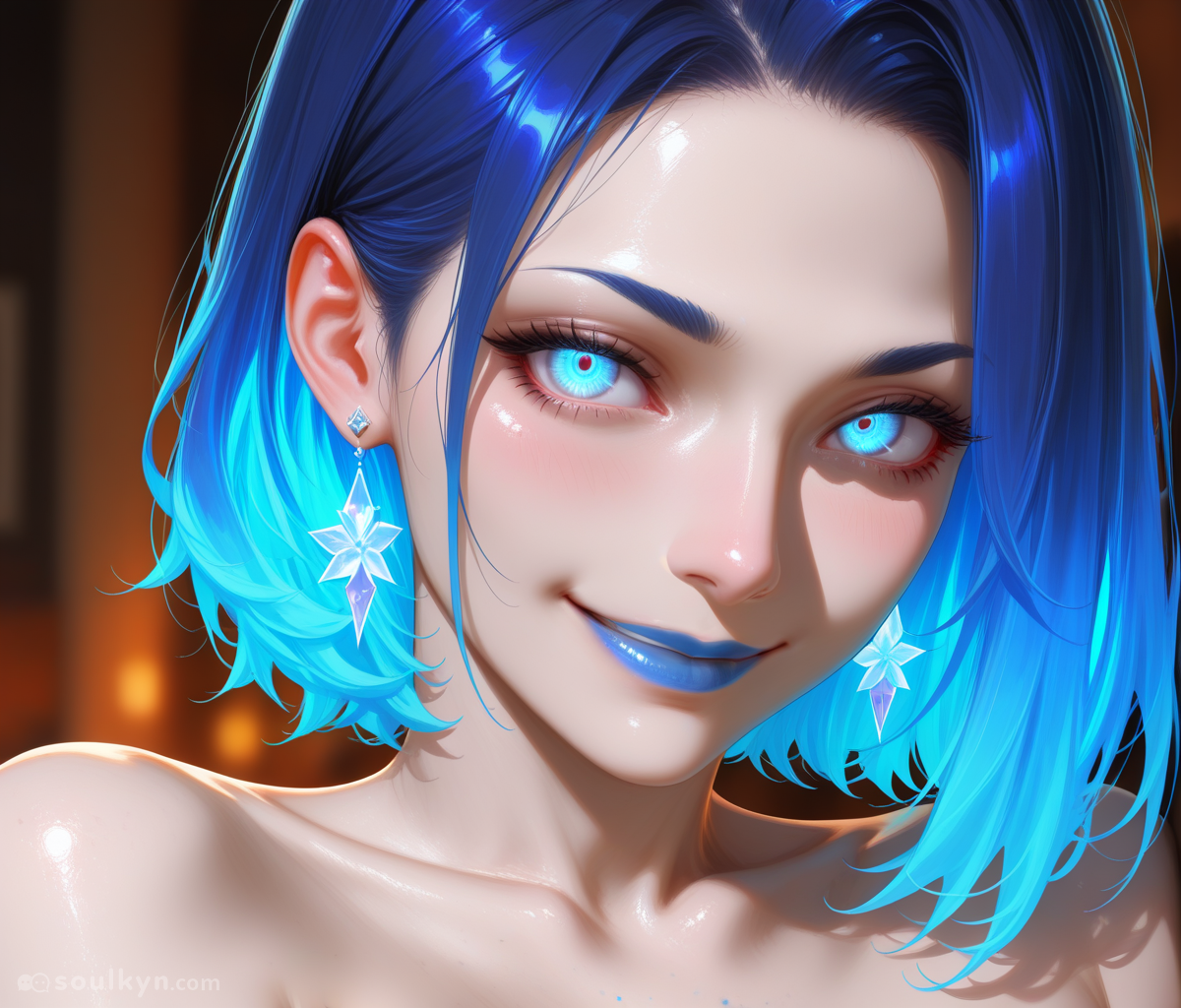
Reading part of the physicals:
- Painterly — more painted detail
- Soft — softer image
- No_lineart — no line art (works like a negative)
- 8k; 16k / High Quality — asking for very high quality
- Hdr — deeper contrast between lights and shadows
- Blue lips — the character has blue lips
- Fair_skin:2 — really means the fair skin
- Long Two-Toned Dark_blue Hair — long hair in two shades of blue
- Realistic_character_anatomy — realistic anatomy
Anatomy of an Advanced Prompt
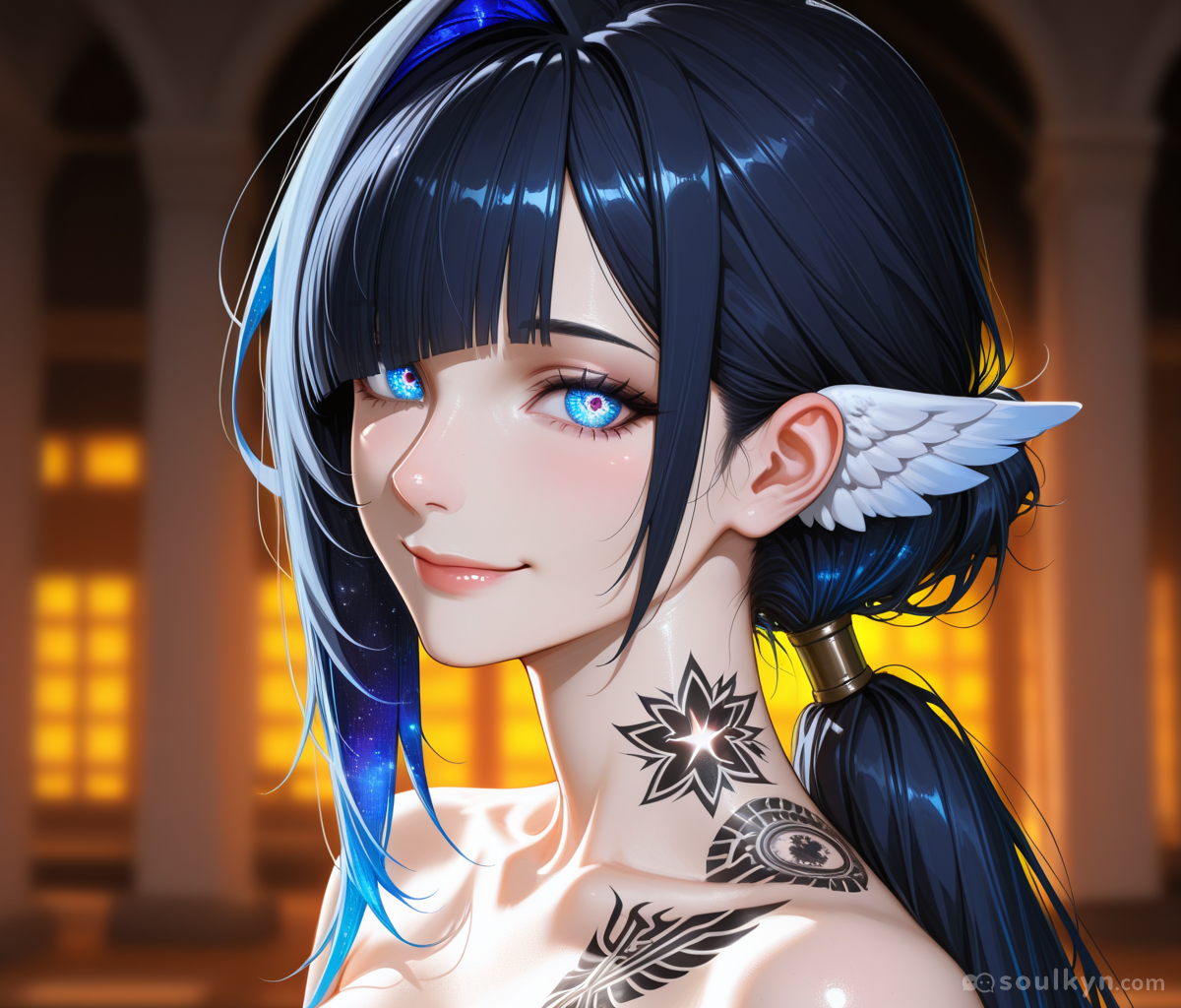
It's time to use all of our newfound knowledge to be more creative with our prompts! For this we will be using PaintFuka's Background and Clothing.
Here's a comparison between no stylized prompts and stylized one:
| Not stylized | Stylized |
|---|---|
|  |
First let's describe a picture that we want to create:
- Amount of people: 1
- Perspective: cowboy shot (knees-up perspective)
- Character wearing a white summer dress
- Character is running while extending one hand
- Expression: Smiling
- Background: Not important, can be blurry to make character stand out
- Quality: Extremely detailed, realistic illustration
Taking this list into account let's prepare all the loras, scheduler, and keywords.
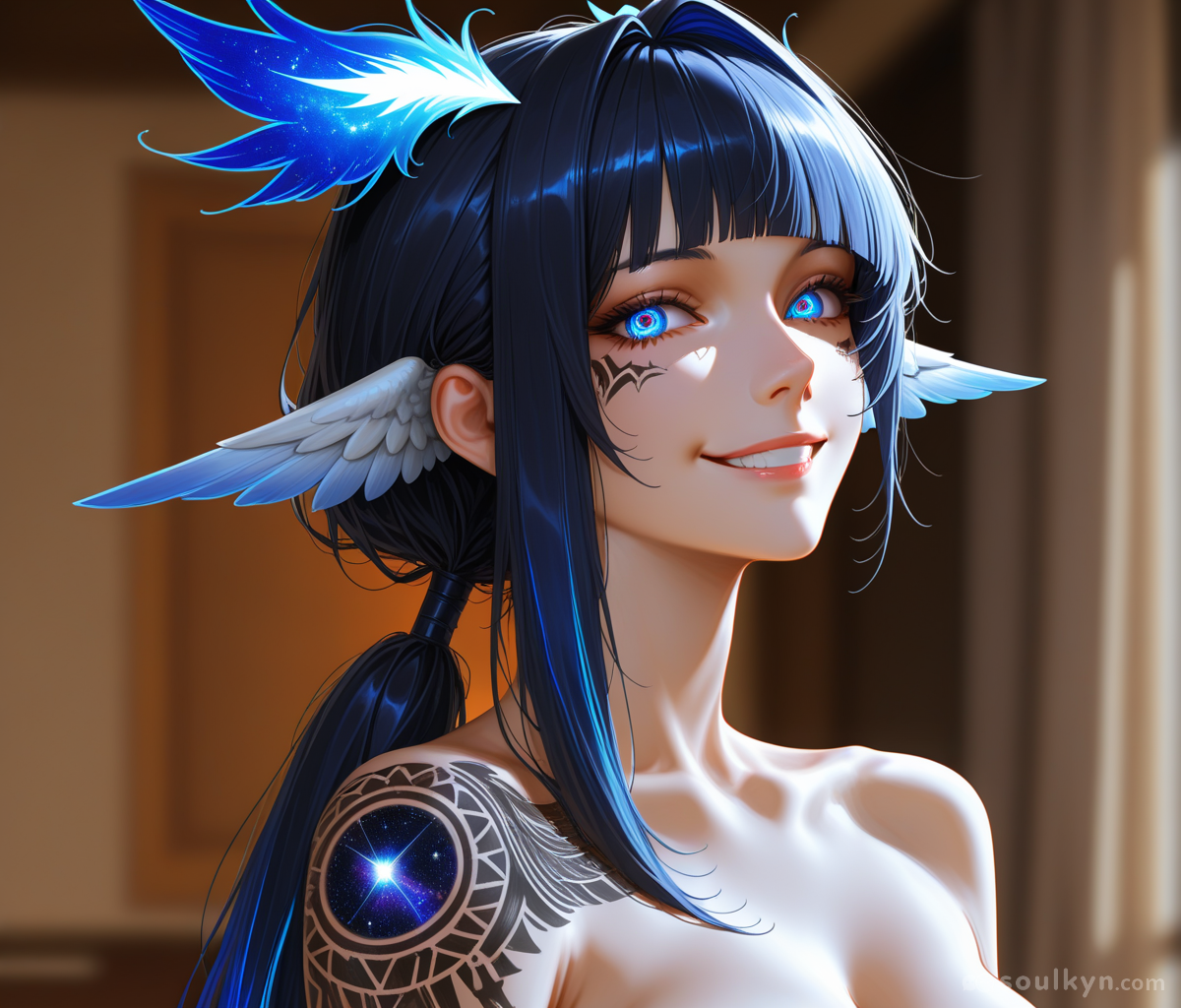
Because we want the picture to resemble a detailed realistic illustration let's use LoRAs just for that!
Here is the result of applying Micro / Fine details :6 and Realistic Illustration :6 LoRAs:
| With LoRAs | No LoRAs |
|---|---|
 | |
Now let's put clothing on her and make her run!
Final prompt:
Advanced settings:
- LoRA: Micro / Fine details :6, Realistic Illustration :6
- Prompt Strength: 11.0
- CLIP Skip: 2
- Scheduler: DPM++ 2M
- Image Orientation: Landscape
- Seed: Random
- Prompt: Portrait
- Background: PaintFuka
- Clothes: PaintFuka
- Image Prompt:
(solo, alone)+++, (macro_detail, clean_composition, color_balance, 8k_realistic_render, professional_product_shot)+++, (close, cowboy_shot)++++, (white_summer_dress---)2, (running)+++, (reaching_out, one_hand, outstretched_hand)+++, (smiling, Happy, open_mouth, closed_eyes)+, (blurry_background--)2
Final result:
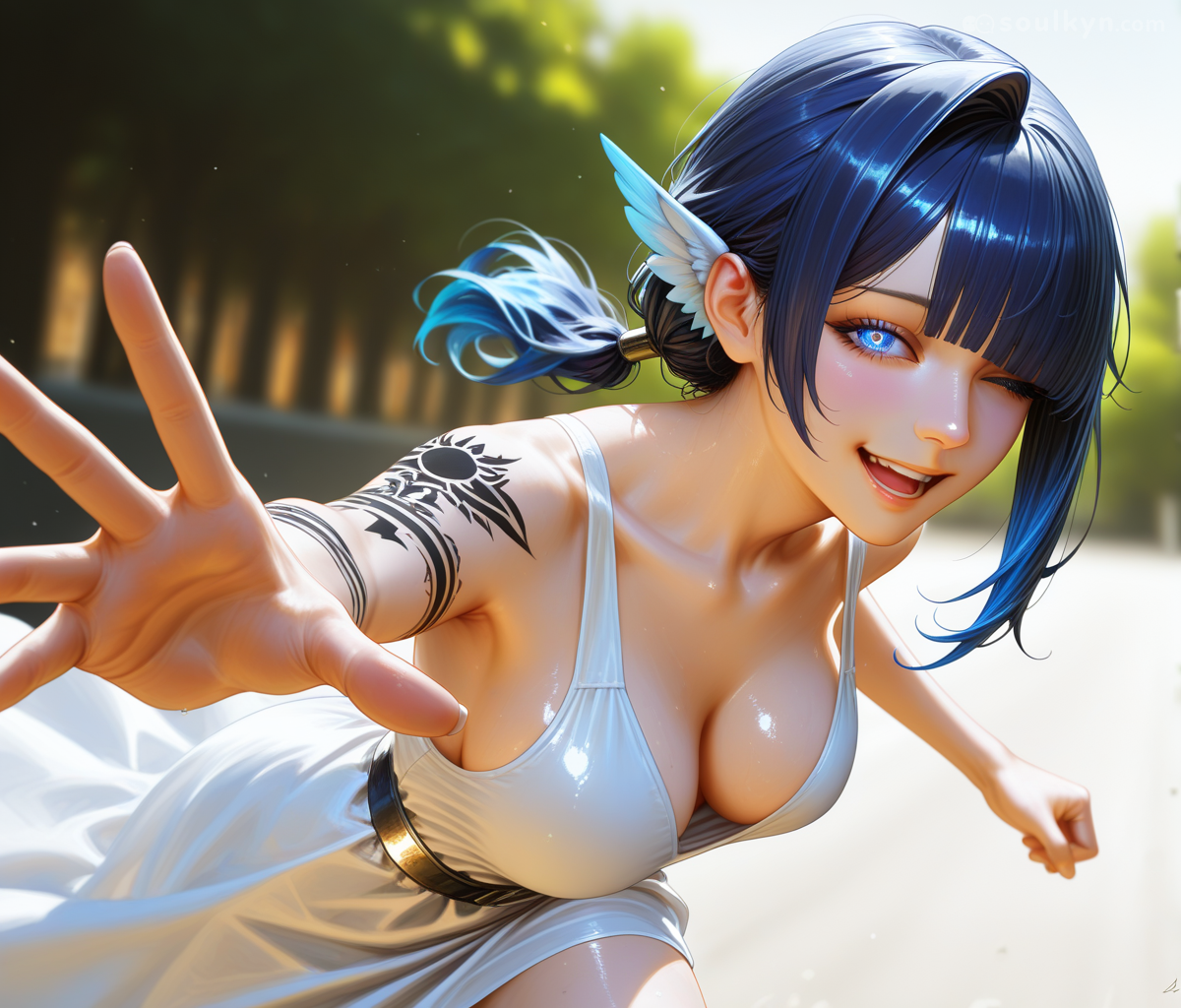
Now let us analyze what went into the prompt and how it works:
(solo, alone)+++- makes the character appear by themselves in the picture(macro_detail, clean_composition, color_balance, 8k_realistic_render, professional_product_shot)+++- these tell AI about the quality of the picture we want to get(close, cowboy_shot)++++- This tells AI that we want a really close cowboy shot(white_summer_dress---)2- This forces AI to give our character a white summer dress(running)+++- This tells AI we want our character to be running(reaching_out, one_hand, outstretched_hand)+++- This precisely tells AI what kind of pose do we want(smiling, Happy, open_mouth, closed_eyes)+- This defines the expression of our character(blurry_background--)2- This forces AI to give us a blurry background
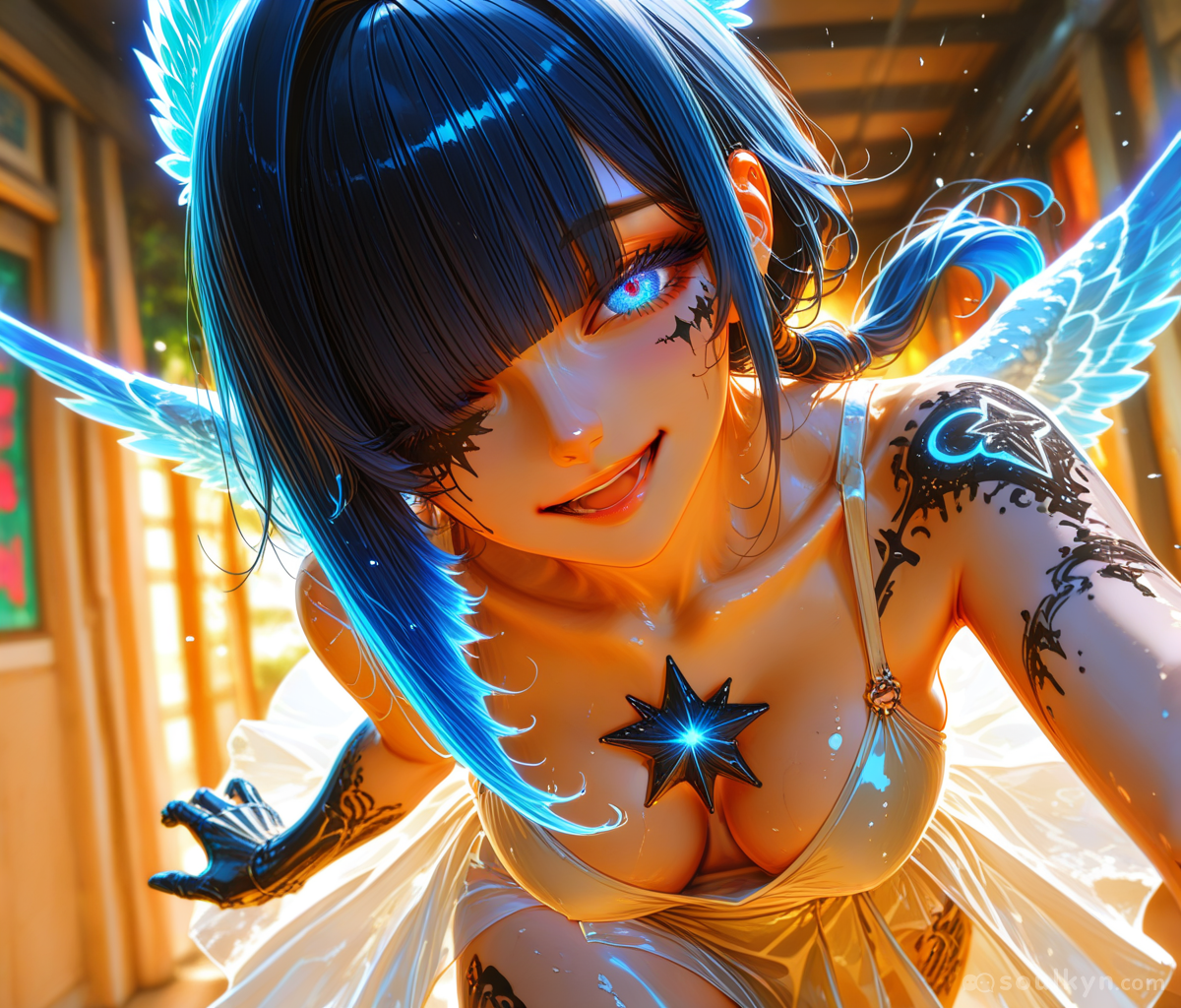
As an extra, this is the effect of adding just one more LoRA:
Common Issues
The most common issue is degrading quality - some users call this "carpetization" because broken images look like close-ups of carpet surface.
This is most likely due to:
- Too much weight
- Too much strength on LoRAs
- Conflicting tags
AI Image Edit
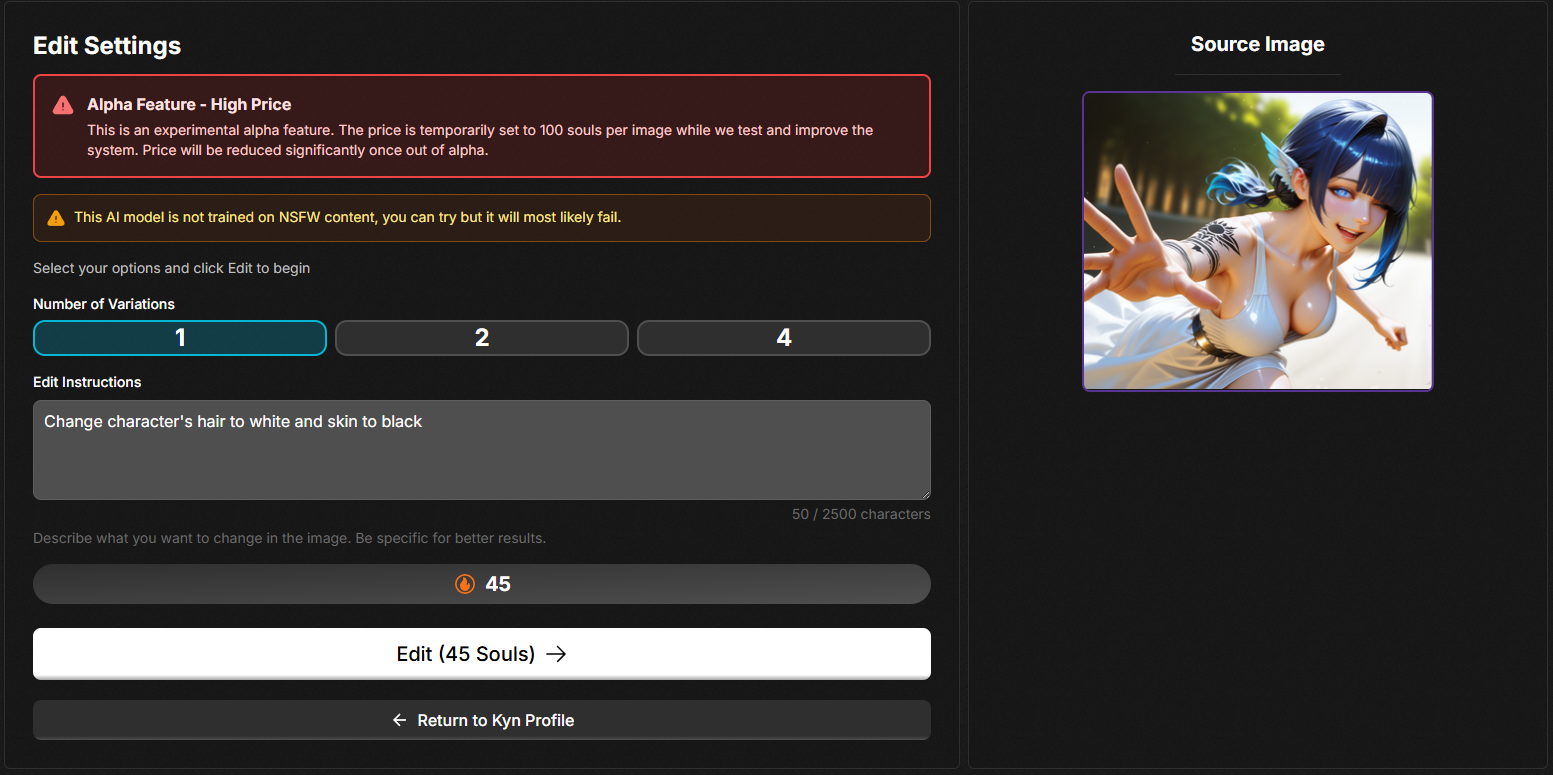
Editing an existing image is a separate tool from generation, and it is the one place on the platform where you talk to the model in plain sentences no matter which image model made the picture.
How to get there
- Open a kyn's gallery
- Pick the image you want to change
- Press EDIT IMAGE
How to write the instruction
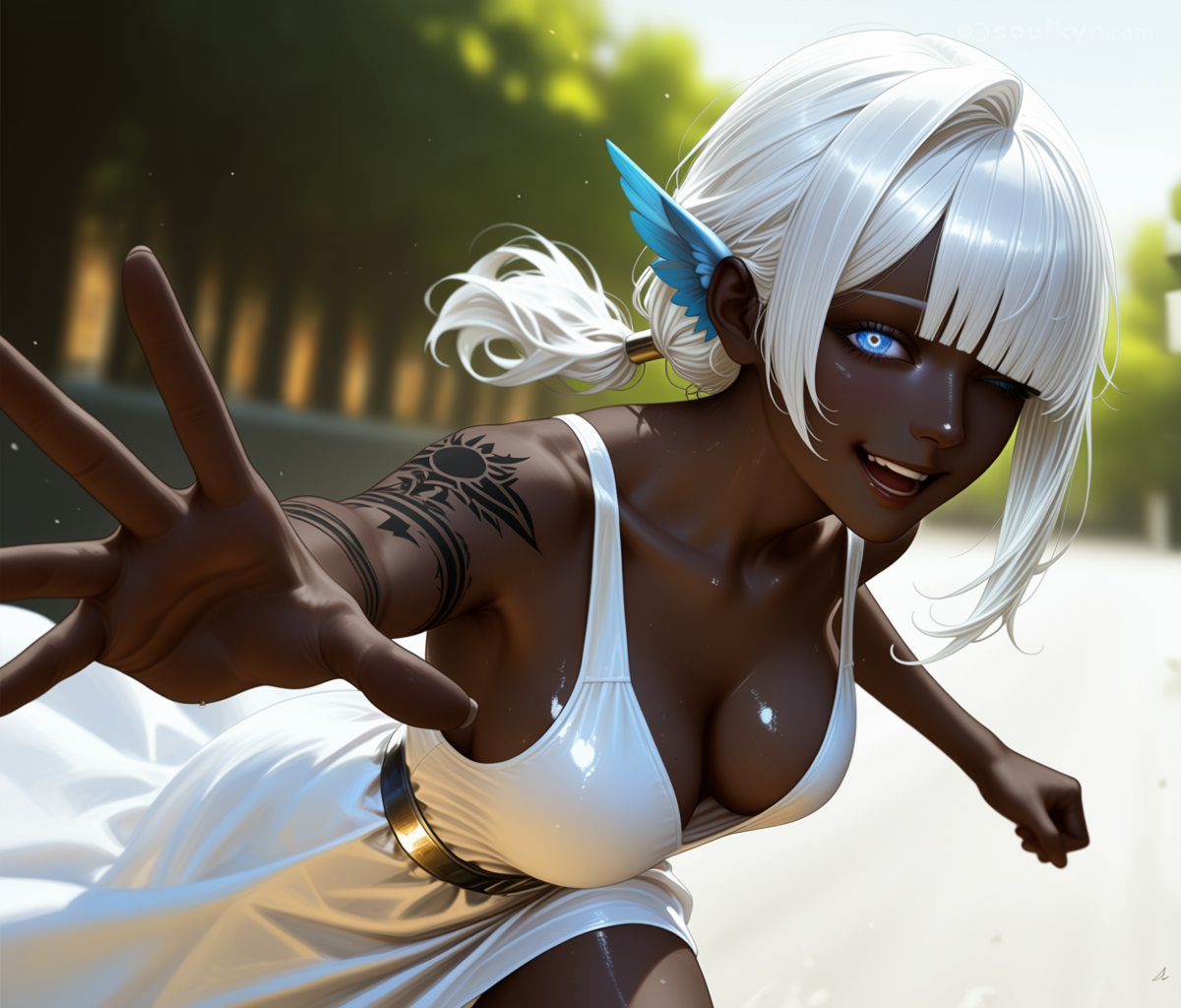
Descriptive sentences, not tags. Say what should be different: "Change the character's hair to white and their skin to a deeper tone." You get up to 2,500 characters of instruction, and a Number of Variations control if you want several attempts at once.
Style presets
On top of a plain edit there are thirteen style enhancements: None (Standard Edit), Caricature, Next Scene, Photo to Anime, Balloon Inflate, Object Remover, Object Adder, Polaroid Photo, Camera Angle Change, Futanarify, To Realistic Photo, Upscale Quality and 18+ Mode.
Two things to know before you start
- Results are held for review. Generated edits expire in 30 minutes if you do not confirm them — mark the ones you want deleted, or pick the one you are keeping, then confirm.
- The edit model is not trained on adult content. The app says so itself: you can try, but it will most likely fail. Generation is uncensored; editing is not the same tool and does not carry the same promise.
Image editing requires Premium.